 Docta
Couldn't log you out. Try again, or close the browser completely.
Get the extension
Connect the extension
Docta reads your courses from your school's learning platform, in your browser. Only the text is saved.
Click Connect in the small window from docta.dk.
Docta asks once, in a small window from docta.dk.
Works in Chrome, Edge, Brave, Opera, Vivaldi, Arc and Firefox.
Connecting to the extension…
Add Docta in the Chrome Web Store tab, then come back here.
Extension added
Waiting for Connect…
We can't see the extension. Check that it's turned on.
Find your school
Ready
Docta finds its platform and address for you.
Pick the platform your school uses. You can find its name on the log-in page.
Search itslearning's own list. Docta fills in the address.
Docta can now read your courses.
Pick your platform
Type two letters to see schools.
Loading itslearning's school list…
We couldn't load itslearning's school list.
Click Allow access in the small window that opened.
Waiting for you to log in…
Opening your courses…
Pick your courses
Pick your free course
Tick the courses Docta should read. You can change this any time.
The Free plan includes one course from this semester. See plans
You can change your free course next semester.
Older semesters come with the Degree plan.
Connecting to the extension…
Check that you logged in to the right school.
Add notes for your AI
Your AI reads them when you ask about a course.
That wasn't saved. Try again.
Your first sync
Your sync
You can leave this page. Docta keeps syncing while your browser is open.
Connect your AI
Ask it about your courses.
Pick the AI you use. Docta shows you the steps and moves on once it's connected.
Pick the AI you use. The Free plan connects one: ChatGPT or Claude.
Docta then shows up in the Claude app on your computer too.
Add it by hand
1. Log in to claude.ai and open Settings → Connectors.
2. Click Add custom connector. Name: Docta. URL:
https://docta.dk/mcp
3. Click Add, then go on from step 2 below.
Already added Docta once? The link then says it exists: open Customize → Connectors → Yours, click Docta and Connect.
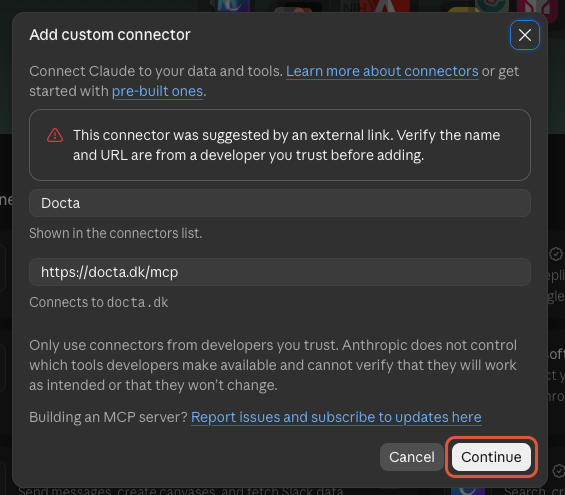
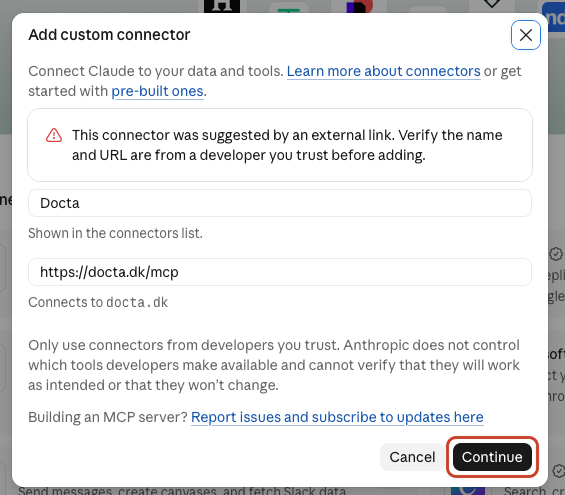
1. Click Add to Claude above. claude.ai opens with Docta filled in; click Continue.
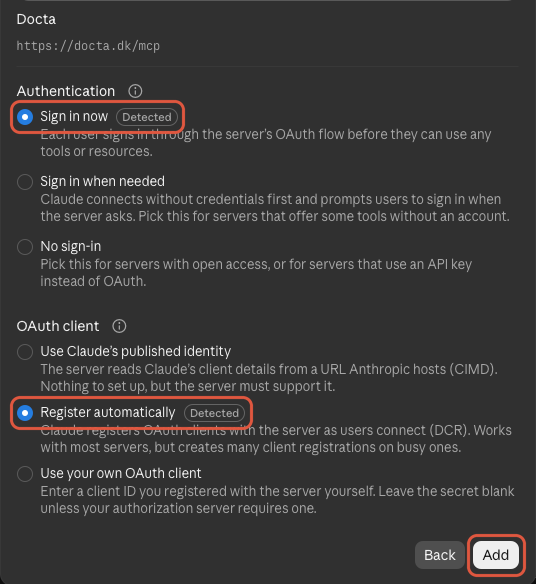
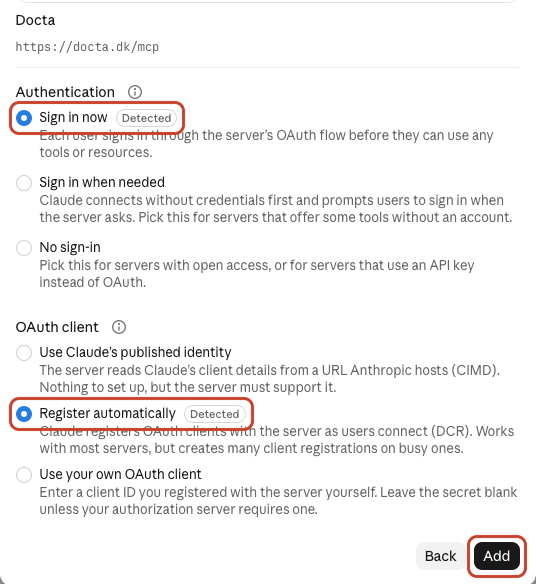
2. Check that Sign in now and Register automatically are chosen, then click Add.
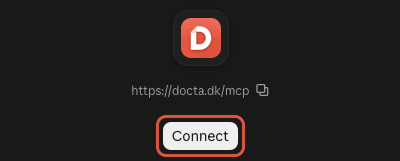
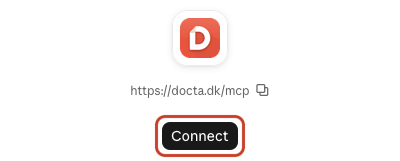
3. Click Connect.
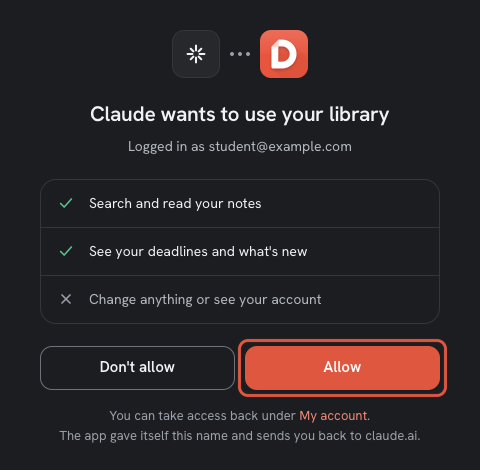
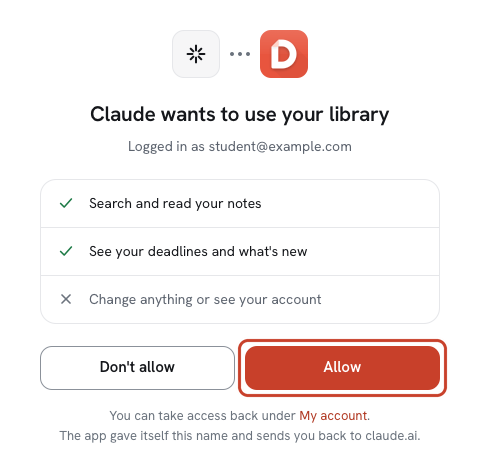
4. docta.dk asks you to allow access. Click Allow.
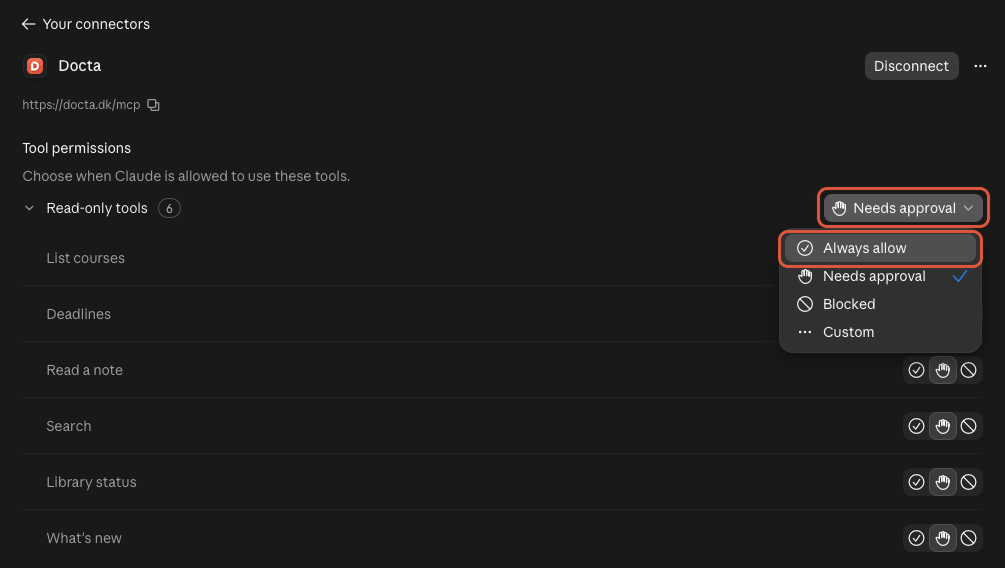
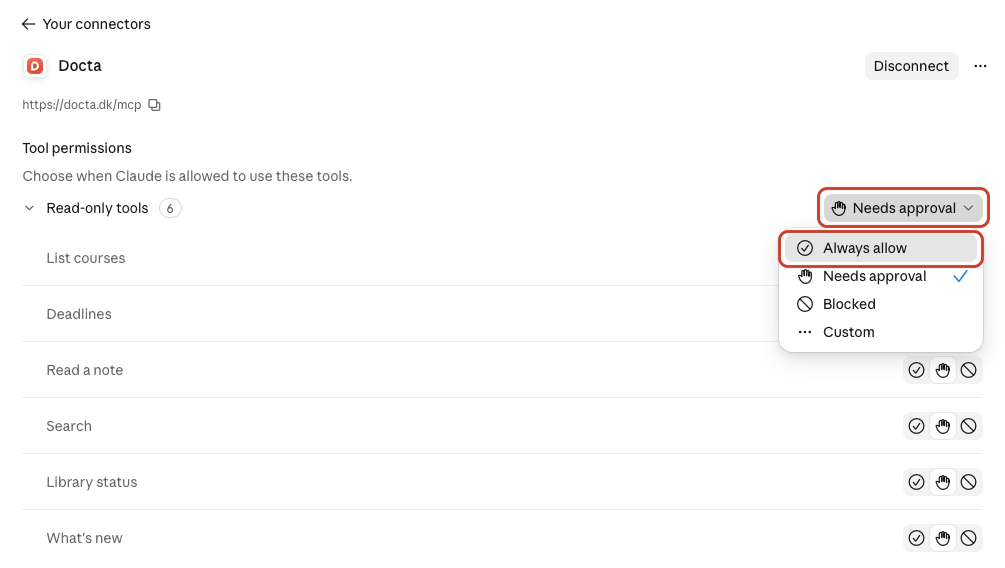
Optional: On Docta's page in Claude (Customize → Connectors), click Needs approval next to Read-only tools and choose Always allow. Then Claude stops asking before it uses Docta.
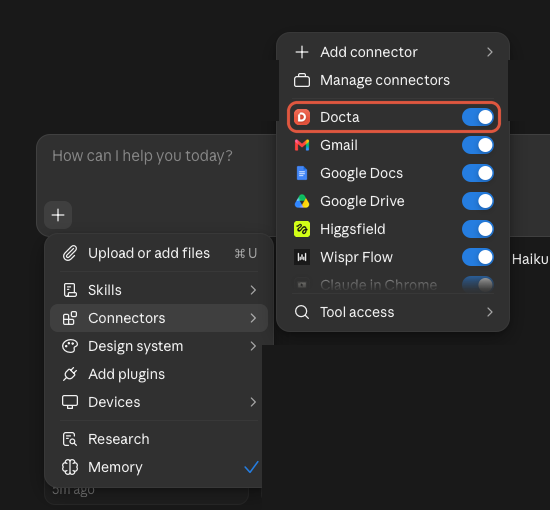
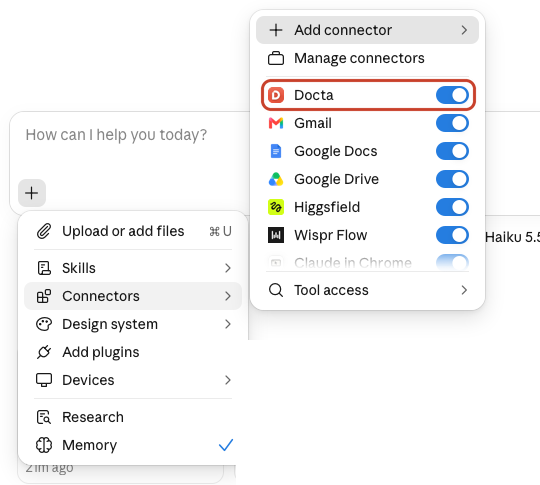
5. In a chat, click + under the text box, open Connectors and switch Docta on. Then ask away. Claude uses Docta by itself when it thinks it makes sense. Write Docta in the question if you want to make sure it uses your school library.
1. Open chatgpt.com/plugins, click Add and choose Add custom MCP server.
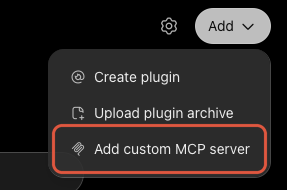
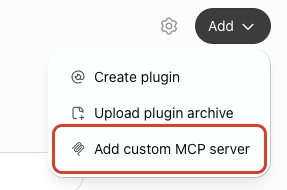
2. Name: Docta. Server URL:
https://docta.dk/mcp
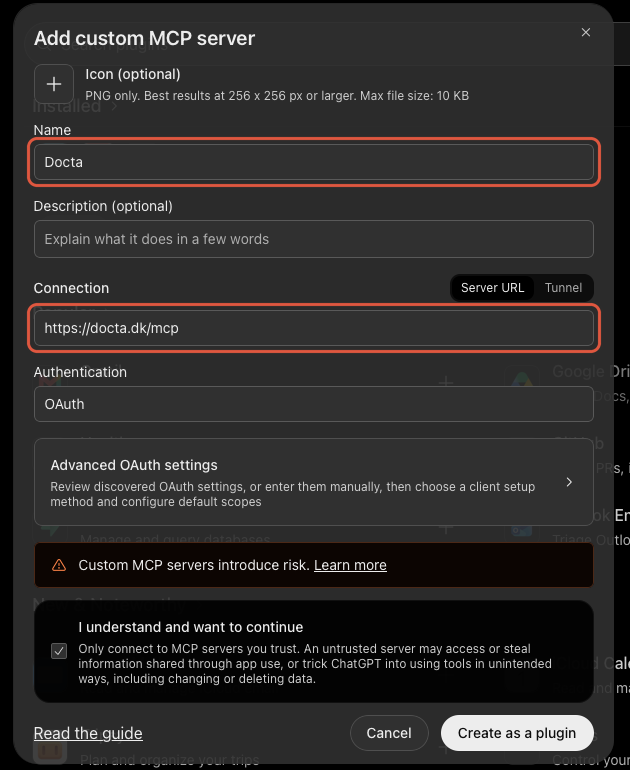
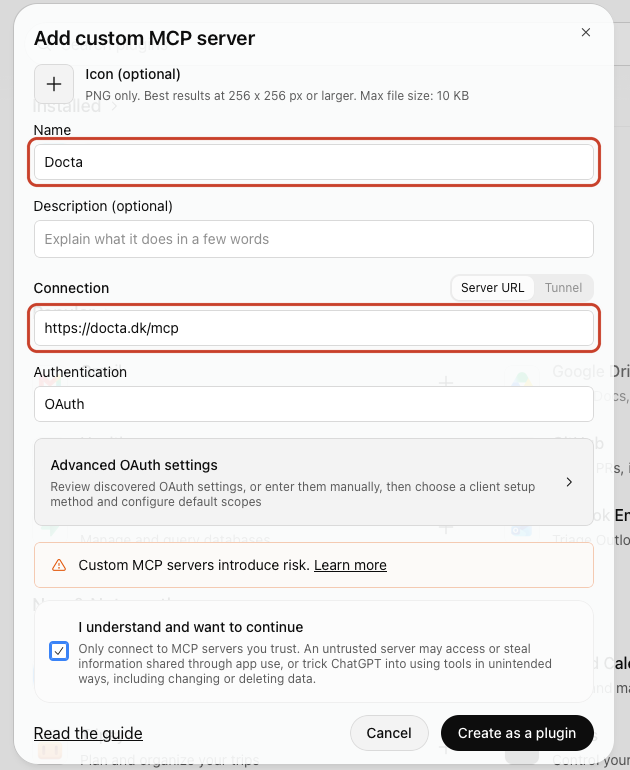
3. Tick I understand and want to continue, then click Create as a plugin.
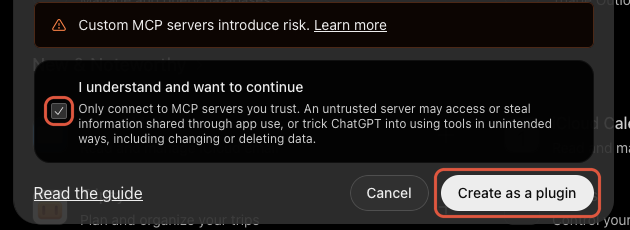
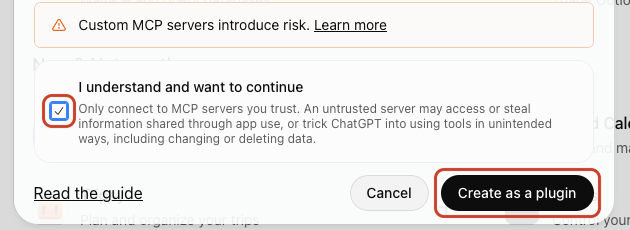
4. ChatGPT shows Connect Docta. Click it.
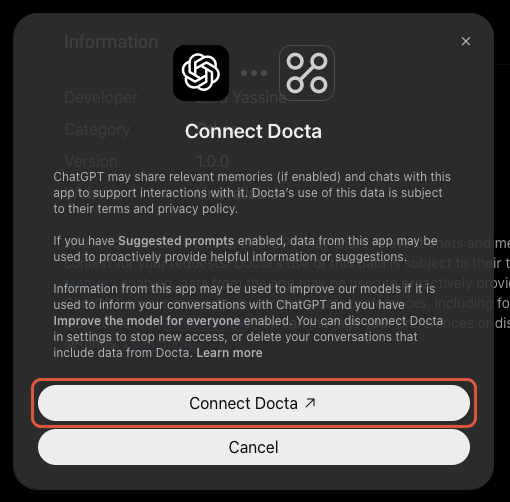
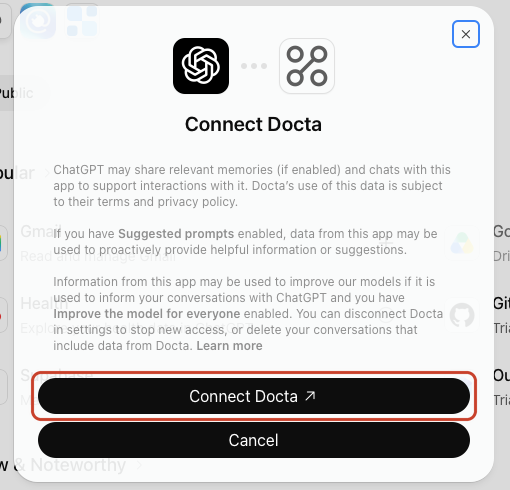
5. Log in to Docta if asked, and click Allow.
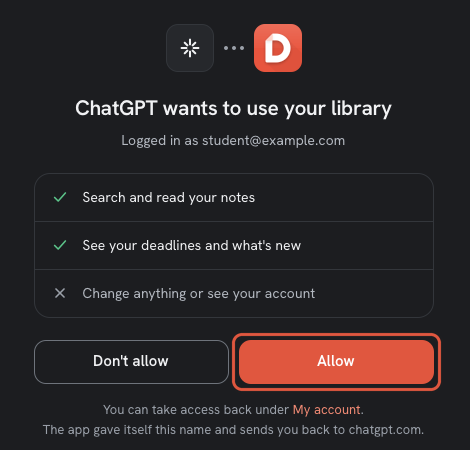
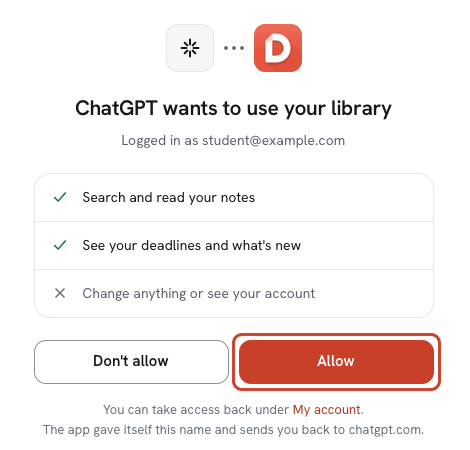
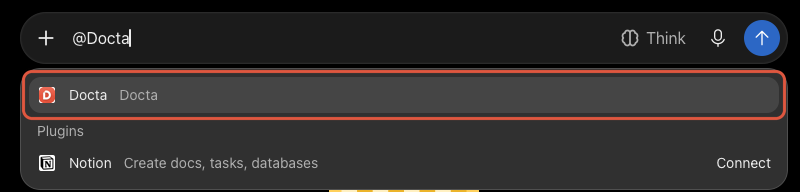
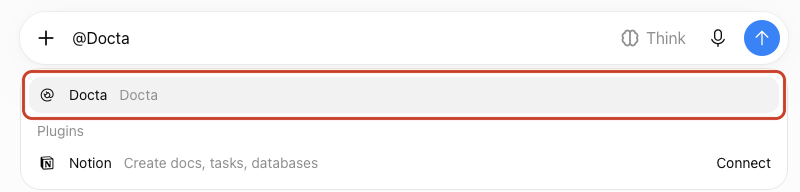
6. In a chat, type @Docta and pick it. ChatGPT uses Docta by itself when it thinks it makes sense. Type @Docta before a question if you want to make sure it uses your school library.
1. Run this in a terminal:
claude mcp add --transport http docta https://docta.dk/mcp
2. Start Claude Code, type /mcp and choose docta. A browser window opens. Log in and approve. Write Docta in the question if you want to make sure it uses your school library.
1. Add the server and log in:
codex mcp add docta --url https://docta.dk/mcp
codex mcp login docta
Write Docta in the question if you want to make sure it uses your school library.
1. Give your app this address:
https://docta.dk/mcp
2. If it can't log in through a window, give it a key instead:
Copy the key now. It won't be shown again. Use it with https://docta.dk/mcp.
Write Docta in the question if you want to make sure it uses your school library.
Click the Docta icon at the top of your browser to see how the sync is going.
Pin Docta to follow the sync: click at the top of your browser, then next to Docta.